

Copertina del nuovo sito

Introduzione

Conoscere il comportamento dei visitatori sul tuo sito web è essenziale per migliorare l’esperienza utente e aumentare le conversioni. Una delle tecniche più efficaci per farlo è tracciare i movimenti del mouse dei visitatori, analizzando dove si concentrano le interazioni. In questo tutorial, esploreremo come monitorare il mouse dei visitatori, generare automaticamente screenshot e creare heatmap che evidenziano i punti di maggiore interazione.

Motivazione

Tracciare i movimenti del mouse ti consente di ottenere informazioni preziose su come gli utenti navigano il tuo sito web. Questo può aiutarti a identificare aree di miglioramento nell’usabilità e ottimizzare la struttura delle tue pagine per guidare meglio l’attenzione degli utenti.

Scopo

In questo tutorial, ti guiderò passo passo nella creazione di un sistema automatizzato che traccia i movimenti del mouse, genera heatmap e aggiorna Firestore con i dati raccolti utilizzando Google Cloud Functions e Firebase.

Obiettivo

Alla fine di questo tutorial, avrai un’applicazione in grado di:

  1. Tracciare e registrare i movimenti del mouse dei visitatori.
  2. Generare screenshot delle pagine visitate.
  3. Creare heatmap basate sui movimenti e click del mouse.
  4. Salvare le URL generate delle heatmap in Firestore.

Ecco un esempio di heatmap generata che mostra i movimenti e i click:

Video esempio di tracciamento del mouse
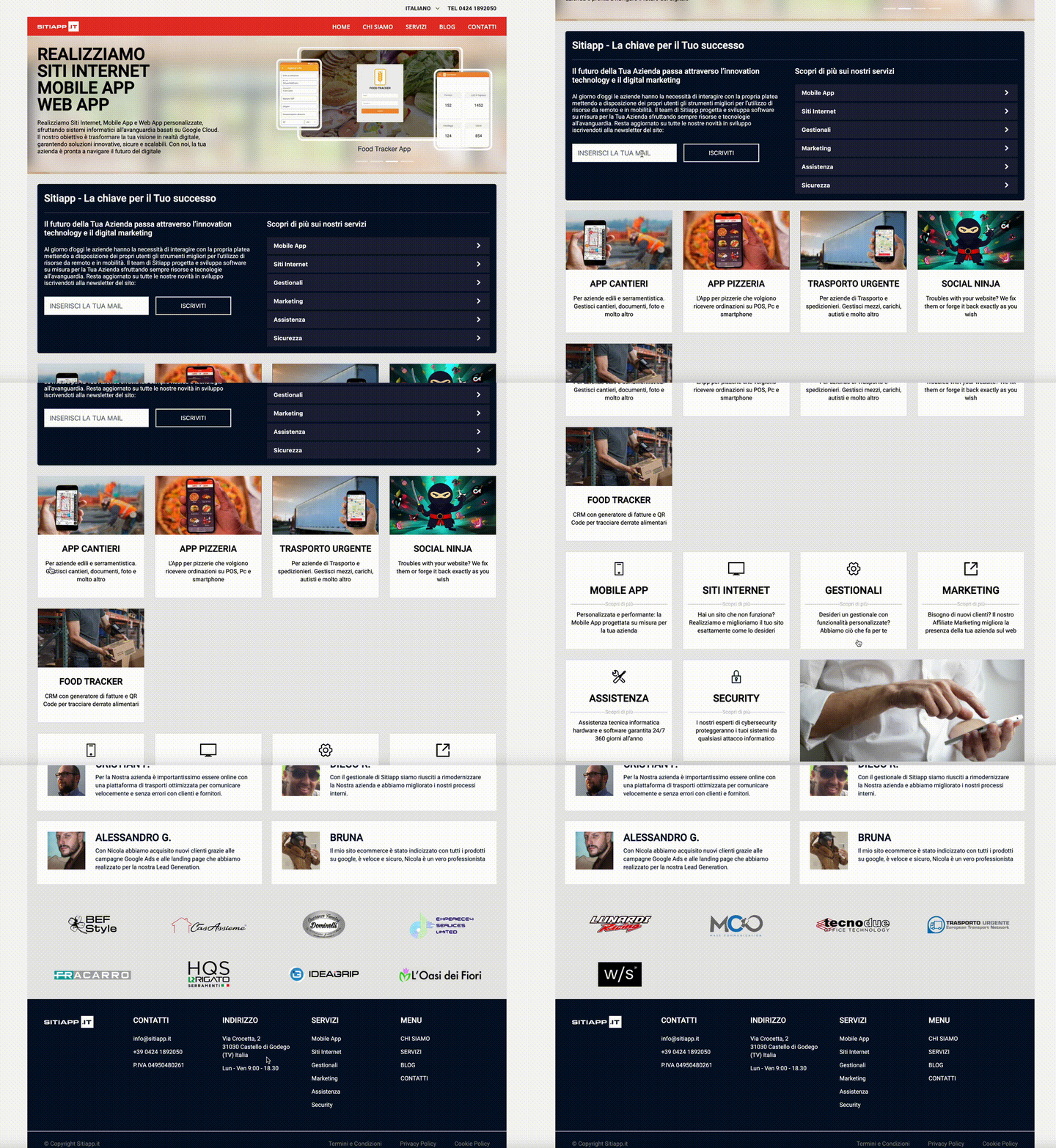
Esempio di tracking del mouse

Heatmap generata con le posizioni del mouse in rosso e i click in colore blu
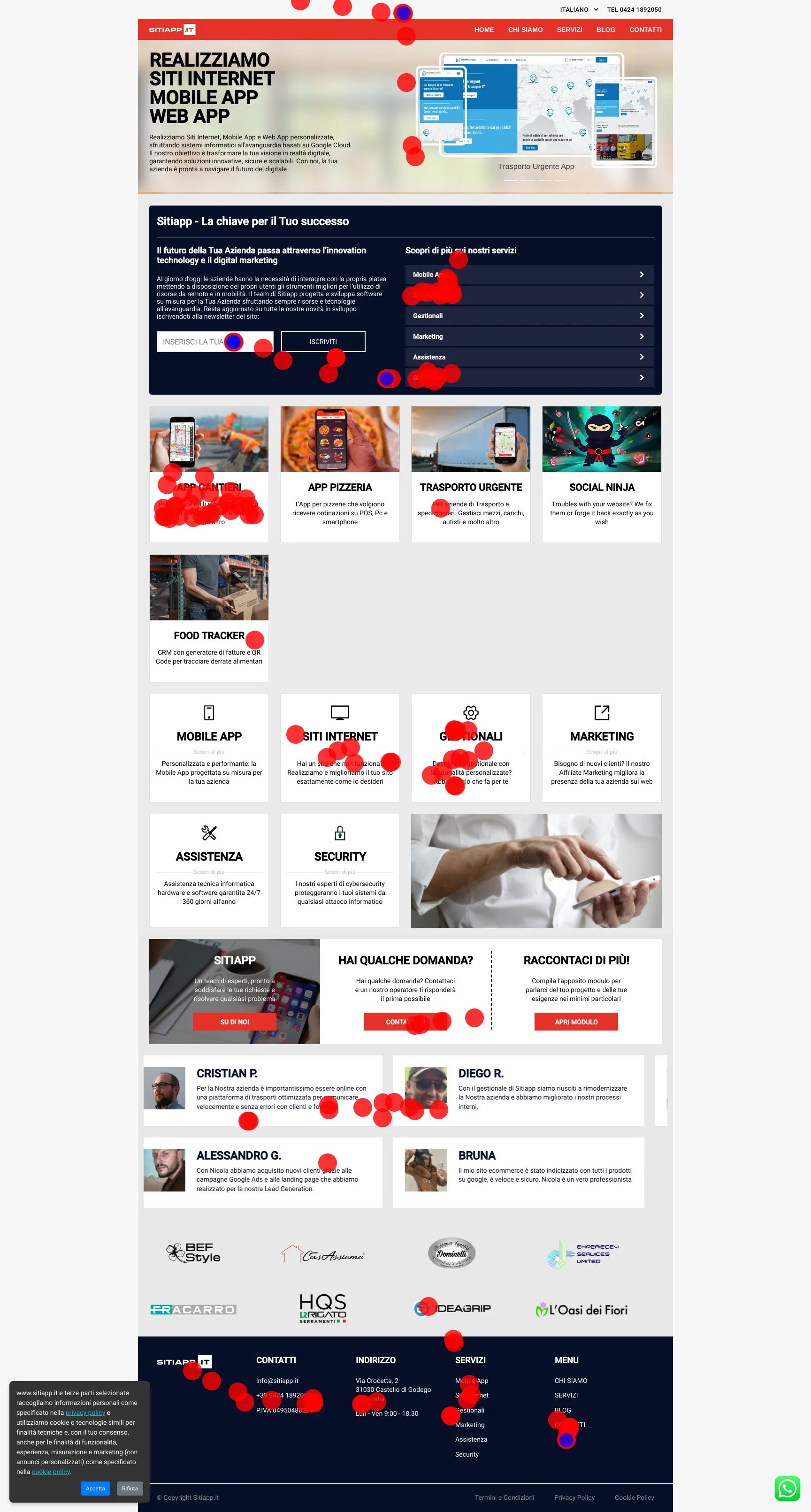
Esempio di tracking del mouse

In questa immagine, i cerchi rossi rappresentano i movimenti del mouse, mentre i punti blu indicano dove gli utenti hanno cliccato.

Con questo sistema, sarai in grado di migliorare il design e la struttura del tuo sito web, ottimizzando l’esperienza utente basata su dati reali di comportamento.

Riepilogo degli Step

  1. Integrazione del Codice di Tracciamento del Mouse nel Tuo Sito.
  2. Creazione della Cloud Function per recuperare la sitemap e salvare le URL.
  3. Implementazione della Cloud Function per generare screenshot delle pagine.
  4. Rilevamento delle nuove sessioni con Cloud Function.
  5. Generazione delle heatmap basate sui movimenti del mouse con Cloud Function.
  6. Salvataggio automatico dell’URL della heatmap su Firestore.

1. Integrazione del Codice di Tracciamento del Mouse nel Tuo Sito

Per tracciare i movimenti del mouse e raccogliere i dati delle sessioni utente, puoi integrare il seguente codice JavaScript nel tuo sito web. I dati verranno inviati a Firestore.

Codice per Tracciare il Mouse

Aggiungi il seguente file JavaScript nel tuo sito per tracciare i movimenti e i click del mouse:

static/js/firebase/mouse-tracker.js

  1
  2
  3
  4
  5
  6
  7
  8
  9
 10
 11
 12
 13
 14
 15
 16
 17
 18
 19
 20
 21
 22
 23
 24
 25
 26
 27
 28
 29
 30
 31
 32
 33
 34
 35
 36
 37
 38
 39
 40
 41
 42
 43
 44
 45
 46
 47
 48
 49
 50
 51
 52
 53
 54
 55
 56
 57
 58
 59
 60
 61
 62
 63
 64
 65
 66
 67
 68
 69
 70
 71
 72
 73
 74
 75
 76
 77
 78
 79
 80
 81
 82
 83
 84
 85
 86
 87
 88
 89
 90
 91
 92
 93
 94
 95
 96
 97
 98
 99
100
101
102
103
104
105
106
107
108
109
110
111
112
113
114
115
116
117
118
119
120
121
122
import {
  db,
  doc,
  setDoc,
  serverTimestamp,
  arrayUnion,
} from "./firebase/init.js"; // Ensure Firestore is initialized

// Check if the user is a bot by analyzing the user agent
function isBot() {
  const botUserAgents = [
    /bot/i,
    /crawl/i,
    /spider/i,
    /slurp/i,
    /search/i,
    /bing/i,
    /yahoo/i,
    /yandex/i,
    /baidu/i,
    /duckduckgo/i,
    /semrush/i,
    /ahrefs/i,
    /googlebot/i,
    /bingbot/i,
  ];
  return botUserAgents.some((bot) => bot.test(navigator.userAgent));
}

// Only run mouse tracking if the user is not a bot
if (!isBot()) {
  console.log("Not a bot, enabling mouse tracking.");

  // Generate a unique session ID for the user (UUID or timestamp-based)
  const sessionId = "session-" + Date.now();
  console.log("Generated session ID:", sessionId);

  // Capture session information (user's browser, OS, screen size)
  const sessionData = {
    browser: navigator.userAgent,
    screenWidth: window.screen.width,
    screenHeight: window.screen.height,
    language: navigator.language,
    platform: navigator.platform,
    sessionStartTime: new Date().toISOString(),
    pageURL: window.location.href, // Capture the current page URL
  };

  console.log("Session Data Captured:", sessionData);

  let clickEvents = [];
  let movementEvents = [];

  // Throttle function to limit event processing
  function throttle(callback, limit) {
    let lastCall = 0;
    return function (...args) {
      const now = Date.now();
      if (now - lastCall >= limit) {
        lastCall = now;
        callback(...args);
      }
    };
  }

  // Function to push events to Firestore by updating the session document
  async function updateSessionInFirestore() {
    try {
      if (clickEvents.length === 0 && movementEvents.length === 0) {
        console.log("No events to push to Firestore.");
        return;
      }

      // Push the data to Firestore using set with arrayUnion to append the data
      await setDoc(
        doc(db, "sessions", sessionId),
        {
          sessionData: sessionData,
          mouseClicks: arrayUnion(...clickEvents),
          mousePositions: arrayUnion(...movementEvents),
          lastUpdated: serverTimestamp(),
        },
        { merge: true }
      );

      console.log("Session data successfully updated in Firestore.");

      // Clear the arrays after sending the data
      clickEvents = [];
      movementEvents = [];
    } catch (error) {
      console.error("Error updating session data:", error);
    }
  }

  // Track mouse movements (throttled to store locally every 200ms)
  document.addEventListener(
    "mousemove",
    throttle((event) => {
      movementEvents.push({
        x: event.clientX + window.scrollX, // Adjust for horizontal scrolling
        y: event.clientY + window.scrollY, // Adjust for vertical scrolling
        timestamp: Date.now(),
      });
    }, 200)
  );

  // Track mouse clicks (store locally)
  document.addEventListener("click", (event) => {
    clickEvents.push({
      x: event.clientX + window.scrollX, // Adjust for horizontal scrolling
      y: event.clientY + window.scrollY, // Adjust for vertical scrolling
      element: event.target.tagName,
      timestamp: Date.now(),
    });
  });

  // Push data to Firestore every 5 seconds
  setInterval(updateSessionInFirestore, 5000);
} else {
  console.log("Bot detected, mouse tracking disabled.");
}
  1. Creazione della Cloud Function per Recuperare la Sitemap e Salvare le URL Il secondo passo consiste nel recuperare le URL delle pagine dal file sitemap.xml e salvarle in Firestore. Questo ci permette di sapere quali pagine visitare e su quali generare screenshot.

Codice:

 1
 2
 3
 4
 5
 6
 7
 8
 9
10
11
12
13
14
15
16
17
18
19
20
21
22
23
24
25
26
27
28
29
30
31
32
33
34
35
36
37
38
39
40
41
42
43
44
45
46
47
48
49
50
51
52
53
54
55
56
57
58
59
60
61
62
63
64
65
66
67
68
69
70
71
72
73
74
75
76
77
78
79
80
81
82
83
const functions = require("firebase-functions");
const admin = require("firebase-admin");
const { XMLParser } = require("fast-xml-parser");

// Initialize Firebase Admin SDK if not already initialized
if (!admin.apps.length) {
  admin.initializeApp();
}

const db = admin.firestore();

// Helper function to delete all documents in a collection
async function deleteCollection(collectionPath) {
  const collectionRef = db.collection(collectionPath);
  const querySnapshot = await collectionRef.get();

  const batch = db.batch();
  querySnapshot.forEach((doc) => {
    batch.delete(doc.ref);
  });

  await batch.commit();
  console.log(`Deleted all documents in collection: ${collectionPath}`);
}

// Cloud Function to fetch sitemap index and save URLs from each sitemap to Firestore
exports.cf_fetchAndStoreSitemapURLs = functions
  .region("your-region")
  .pubsub.schedule("every 24 hours") // Schedule to run daily
  .onRun(async (context) => {
    try {
      const fetch = await import("node-fetch").then((mod) => mod.default); // Dynamic import
      const sitemapIndexUrl =
        process.env.SITEMAP_INDEX_URL || "https://your-default-sitemap-url.xml"; // Use environment variable
      const response = await fetch(sitemapIndexUrl);
      const xmlData = await response.text();

      const parser = new XMLParser();
      const jsonData = parser.parse(xmlData);

      // Check if it is a sitemap index and contains sitemap URLs
      const sitemaps = jsonData.sitemapindex.sitemap.map((entry) => entry.loc);

      if (sitemaps.length === 0) {
        console.error("No sitemaps found in the sitemap index.");
        return null;
      }

      // Delete existing sitemap URLs before adding new ones
      await deleteCollection("sitemaps");

      // Now fetch each individual sitemap and extract the URLs
      for (const sitemapUrl of sitemaps) {
        console.log(`Fetching sitemap: ${sitemapUrl}`);

        const sitemapResponse = await fetch(sitemapUrl);
        const sitemapXml = await sitemapResponse.text();
        const sitemapData = parser.parse(sitemapXml);

        // Extract the URLs from the individual sitemap
        const urls = sitemapData.urlset.url.map((entry) => entry.loc);

        // Save URLs to Firestore
        const batch = db.batch();
        urls.forEach((url) => {
          const urlDocRef = db.collection("sitemaps").doc();
          batch.set(urlDocRef, {
            url,
            createdAt: admin.firestore.FieldValue.serverTimestamp(),
          });
        });

        await batch.commit();
        console.log(`Saved ${urls.length} URLs from ${sitemapUrl}.`);
      }

      console.log("All sitemaps processed successfully.");
      return null;
    } catch (error) {
      console.error("Error fetching sitemap:", error);
      throw new Error("Failed to fetch sitemap");
    }
  });
  1. Implementazione della Cloud Function per Generare Screenshot delle URL Una volta recuperate le URL, utilizziamo un’altra Cloud Function per generare automaticamente screenshot di ogni pagina.

Codice:

  1
  2
  3
  4
  5
  6
  7
  8
  9
 10
 11
 12
 13
 14
 15
 16
 17
 18
 19
 20
 21
 22
 23
 24
 25
 26
 27
 28
 29
 30
 31
 32
 33
 34
 35
 36
 37
 38
 39
 40
 41
 42
 43
 44
 45
 46
 47
 48
 49
 50
 51
 52
 53
 54
 55
 56
 57
 58
 59
 60
 61
 62
 63
 64
 65
 66
 67
 68
 69
 70
 71
 72
 73
 74
 75
 76
 77
 78
 79
 80
 81
 82
 83
 84
 85
 86
 87
 88
 89
 90
 91
 92
 93
 94
 95
 96
 97
 98
 99
100
101
102
103
104
105
106
107
108
109
110
111
112
113
114
115
116
117
118
const functions = require("firebase-functions");
const admin = require("firebase-admin");
const chromium = require("@sparticuz/chromium");
const puppeteer = require("puppeteer-core");

if (!admin.apps.length) {
  admin.initializeApp();
}

const db = admin.firestore();
const bucket = admin
  .storage()
  .bucket(process.env.BUCKET_NAME || "your-default-bucket-name");

// Function to retrieve screen sizes from Firestore (as array of strings)
async function getScreenSizesFromConfig() {
  const configDoc = await db
    .collection("config")
    .doc("sessionsScreensRes")
    .get();
  if (configDoc.exists) {
    return configDoc.data().screenSizes || [];
  }
  return [];
}

// Function to parse the screen size string and return an object
function parseScreenSizeString(screenSizeStr) {
  const [width, height] = screenSizeStr.split("-");
  return {
    width: parseInt(width, 10),
    height: parseInt(height, 10),
    label: screenSizeStr, // Use the string itself as the label
  };
}

// Cloud Function to generate screenshots for multiple screen sizes
exports.generateSessionScreenshots = functions
  .region("your-region")
  .runWith({ memory: "1GB", timeoutSeconds: 300 }) // Set 1GB memory and 300s timeout
  .firestore.document("sitemaps/{urlId}")
  .onCreate(async (snap, context) => {
    const urlData = snap.data();
    let url = urlData.url;

    try {
      // Fetch screen sizes from Firestore
      const screenSizesStrings = await getScreenSizesFromConfig();
      const screenSizes = screenSizesStrings.map(parseScreenSizeString);

      // Launch Puppeteer with Chromium for serverless environments
      const browser = await puppeteer.launch({
        executablePath: await chromium.executablePath(),
        args: chromium.args,
        defaultViewport: chromium.defaultViewport,
        headless: chromium.headless,
      });

      const page = await browser.newPage();

      // Replace URL encoding with human-readable characters and remove protocol
      const sanitizedUrl = url
        .replace(/^https?:\/\//, "")
        .replace(/[^\w-]/g, "-");

      for (const size of screenSizes) {
        // Set the viewport size
        await page.setViewport({ width: size.width, height: size.height });
        await page.goto(urlData.url, { waitUntil: "networkidle2" });

        // Scroll the page to ensure all dynamic content loads
        await autoScroll(page);

        // Capture a full-page screenshot
        const screenshotBuffer = await page.screenshot({ fullPage: true });
        const filename = `screenshots/${sanitizedUrl}-${size.label}.png`;

        // Save the screenshot to Cloud Storage
        await bucket
          .file(filename)
          .save(screenshotBuffer, { contentType: "image/png" });
        console.log(
          `Full-page screenshot saved for ${urlData.url} at ${filename}`
        );
      }

      await browser.close();
      return null;
    } catch (error) {
      console.error("Error generating screenshots for URL:", error);
      throw new Error("Screenshot generation failed");
    }
  });

// Helper function to scroll the page to ensure all content is loaded
async function autoScroll(page) {
  await page.evaluate(async () => {
    await new Promise((resolve) => {
      let totalHeight = 0;
      const distance = 100;
      const timer = setInterval(() => {
        window.scrollBy(0, distance);
        totalHeight += distance;

        if (totalHeight >= document.body.scrollHeight) {
          clearInterval(timer);
          resolve();
        }
      }, 100);
    });
  });
}

/* 
  
  firebase use YOUR-PROJECT-ID &&
  firebase deploy --only functions:generateSessionScreenshots
  */
  1. Rilevamento delle Nuove Sessioni con Cloud Function Questa funzione rileva la creazione di una nuova sessione utente e raccoglie le posizioni del mouse durante la visita.

Codice:

 1
 2
 3
 4
 5
 6
 7
 8
 9
10
11
12
13
14
15
16
17
18
19
20
21
22
23
24
25
26
27
28
29
30
31
32
33
34
35
36
37
38
39
40
41
42
43
44
45
46
47
48
49
50
51
52
53
54
55
56
57
58
59
60
61
62
63
64
65
66
67
const functions = require("firebase-functions");
const admin = require("firebase-admin");

// Initialize Firebase Admin SDK if not already initialized
if (!admin.apps.length) {
  admin.initializeApp();
}

const db = admin.firestore();

// Cloud Function to detect new sessions every hour
exports.detectNewUserSessions = functions
  .region("your-region")
  .pubsub.schedule("every 60 minutes")
  .onRun(async (context) => {
    try {
      const referenceSnapshot = await db.collection("referenceSessions").get();
      const referenceIds = referenceSnapshot.docs.map((doc) => doc.id);

      const userSessionsSnapshot = await db.collection("sessions").get();
      const userSessionIds = userSessionsSnapshot.docs.map((doc) => doc.id);

      const newSessionIds = userSessionIds.filter(
        (id) => !referenceIds.includes(id)
      );

      if (newSessionIds.length > 0) {
        const batch = db.batch();

        // Loop through each new session and fetch its full document
        for (const id of newSessionIds) {
          const userSessionDoc = await db.collection("sessions").doc(id).get();

          if (userSessionDoc.exists) {
            const sessionData = userSessionDoc.data(); // Get the session data

            // Reference to newSessions collection where the new session will be saved
            const docRef = db.collection("newSessions").doc(id);

            // Save the session data into the newSessions collection with createdAt timestamp
            batch.set(docRef, {
              ...sessionData, // Spread the session data here
              createdAt: admin.firestore.FieldValue.serverTimestamp(),
            });
          }
        }

        await batch.commit();
        console.log(
          `Added ${newSessionIds.length} new session IDs with full session data to newSessions.`
        );
      } else {
        console.log("No new session IDs found.");
      }

      return null;
    } catch (error) {
      console.error("Error detecting new sessions:", error);
      throw new Error("Session detection failed");
    }
  });

/* 
  
  firebase use YOUR-PROJECT-ID &&
  firebase deploy --only functions:detectNewUserSessions
  */
  1. Generazione delle Heatmap Basate sui Movimenti del Mouse Una volta che abbiamo raccolto i dati del mouse, possiamo generare una heatmap sovrapponendo i movimenti del mouse e i click su uno screenshot della pagina.

Codice:

  1
  2
  3
  4
  5
  6
  7
  8
  9
 10
 11
 12
 13
 14
 15
 16
 17
 18
 19
 20
 21
 22
 23
 24
 25
 26
 27
 28
 29
 30
 31
 32
 33
 34
 35
 36
 37
 38
 39
 40
 41
 42
 43
 44
 45
 46
 47
 48
 49
 50
 51
 52
 53
 54
 55
 56
 57
 58
 59
 60
 61
 62
 63
 64
 65
 66
 67
 68
 69
 70
 71
 72
 73
 74
 75
 76
 77
 78
 79
 80
 81
 82
 83
 84
 85
 86
 87
 88
 89
 90
 91
 92
 93
 94
 95
 96
 97
 98
 99
100
101
102
103
104
105
106
107
108
109
110
111
112
113
114
115
116
117
118
119
120
121
122
123
124
125
126
127
128
129
130
131
132
133
134
135
136
137
138
139
140
141
142
143
144
145
146
147
148
149
150
151
152
153
154
155
156
157
158
159
160
161
162
163
164
165
166
167
168
169
170
171
172
173
174
175
176
177
178
179
180
181
182
183
184
185
186
187
188
189
190
191
192
193
194
195
196
197
198
199
200
201
202
203
204
205
206
207
208
209
210
211
212
213
214
215
216
217
218
219
220
221
222
223
224
225
226
227
228
229
230
231
232
233
234
235
236
237
238
239
240
241
242
243
244
245
246
247
const functions = require("firebase-functions");
const admin = require("firebase-admin");
const { createCanvas, loadImage } = require("canvas");
const fs = require("fs");
const path = require("path");

if (!admin.apps.length) {
  admin.initializeApp();
}

const db = admin.firestore();
const bucket = admin.storage().bucket("YOUR_BUCKET");

// Function to retrieve screen sizes from Firestore
async function getScreenSizesFromConfig() {
  const configDoc = await db
    .collection("config")
    .doc("sessionsScreensRes")
    .get();
  if (configDoc.exists) {
    return configDoc.data().screenSizes || [];
  }
  return [];
}

// Function to parse the screen size string
function parseScreenSizeString(screenSizeStr) {
  const [width, height] = screenSizeStr.split("-");
  return {
    width: parseInt(width, 10),
    height: parseInt(height, 10),
    label: screenSizeStr,
  };
}

// Function to find the screen size label based on width and height
function findScreenSizeLabel(screenSizes, width, height) {
  return screenSizes.find((sizeStr) => {
    const { width: sizeWidth, height: sizeHeight } =
      parseScreenSizeString(sizeStr);
    return sizeWidth === width && sizeHeight === height;
  });
}

// Function to add new screen resolution to Firestore if not found
async function addNewScreenSizeToConfig(width, height) {
  const newLabel = `${width}-${height}`;
  await db
    .collection("config")
    .doc("sessionsScreensRes")
    .update({
      screenSizes: admin.firestore.FieldValue.arrayUnion(newLabel),
    });
  console.log(`Added new screen size: ${newLabel} to Firestore.`);
  return newLabel;
}

// Helper function to sanitize URL for filenames
function sanitizeUrlForFilename(url) {
  return url.replace(/^https?:\/\//, "").replace(/[^\w-]/g, "-");
}

// Function to generate the mouse movement and click overlay
async function generateOverlayImage(
  sessionId,
  sessionData,
  screenshotWidth,
  screenshotHeight
) {
  const mouseMovements = sessionData.mousePositions || [];
  const mouseClicks = sessionData.mouseClicks || [];

  const canvas = createCanvas(screenshotWidth, screenshotHeight);
  const ctx = canvas.getContext("2d");

  const viewportHeight =
    sessionData.sessionData.viewportHeight || screenshotHeight;
  const fullPageHeight = sessionData.sessionData.pageHeight || screenshotHeight;
  const viewportWidth =
    sessionData.sessionData.viewportWidth || screenshotWidth;

  const yScaleFactor = screenshotHeight / fullPageHeight;
  const xScaleFactor = screenshotWidth / viewportWidth;

  // Draw mouse movements
  mouseMovements.forEach(({ x, y }) => {
    const adjustedX = x * xScaleFactor;
    const adjustedY = y * yScaleFactor;
    if (
      adjustedX >= 0 &&
      adjustedX <= screenshotWidth &&
      adjustedY >= 0 &&
      adjustedY <= screenshotHeight
    ) {
      ctx.beginPath();
      ctx.arc(adjustedX, adjustedY, 20, 0, Math.PI * 2);
      ctx.fillStyle = "rgba(255, 0, 0, 0.8)";
      ctx.fill();
    }
  });

  // Draw mouse clicks
  mouseClicks.forEach(({ x, y }) => {
    const adjustedX = x * xScaleFactor;
    const adjustedY = y * yScaleFactor;
    if (
      adjustedX >= 0 &&
      adjustedX <= screenshotWidth &&
      adjustedY >= 0 &&
      adjustedY <= screenshotHeight
    ) {
      ctx.beginPath();
      ctx.arc(adjustedX, adjustedY, 15, 0, Math.PI * 2);
      ctx.fillStyle = "rgba(0, 0, 255, 0.8)";
      ctx.fill();
    }
  });

  const overlayFilePath = `/tmp/${sessionId}-overlay.png`;
  const buffer = canvas.toBuffer("image/png");
  fs.writeFileSync(overlayFilePath, buffer);
  console.log(`Overlay image saved at ${overlayFilePath}`);

  return overlayFilePath;
}

// Function to combine screenshot and overlay into a single image
async function combineScreenshotAndOverlay(
  screenshotPath,
  overlayPath,
  sessionId
) {
  const screenshot = await loadImage(screenshotPath);
  const overlay = await loadImage(overlayPath);

  const canvas = createCanvas(screenshot.width, screenshot.height);
  const ctx = canvas.getContext("2d");

  // Draw the screenshot as the background
  ctx.drawImage(screenshot, 0, 0, screenshot.width, screenshot.height);

  // Draw the overlay on top
  ctx.drawImage(overlay, 0, 0, screenshot.width, screenshot.height);

  const finalHeatmapFilePath = `/tmp/${sessionId}-final-heatmap.png`;
  const buffer = canvas.toBuffer("image/png");
  fs.writeFileSync(finalHeatmapFilePath, buffer);
  console.log(`Final heatmap saved at ${finalHeatmapFilePath}`);

  return finalHeatmapFilePath;
}

exports.generateSessionHeatmap = functions
  .region("your-region")
  .runWith({ memory: "1GB", timeoutSeconds: 300 }) // Set 1GB memory and 300s timeout
  .firestore.document("newSessions/{sessionId}")
  .onCreate(async (snap, context) => {
    const sessionId = context.params.sessionId;
    console.log(`Generating heatmap for session: ${sessionId}`);

    try {
      const sessionDoc = await db.collection("sessions").doc(sessionId).get();
      if (!sessionDoc.exists) {
        console.error(`Session ${sessionId} does not exist.`);
        return null;
      }

      const sessionData = sessionDoc.data();
      const mouseMovements = sessionData.mousePositions || [];
      const mouseClicks = sessionData.mouseClicks || [];
      const pageURL = sessionData.sessionData.pageURL;
      const screenWidth = sessionData.sessionData.screenWidth;
      const screenHeight = sessionData.sessionData.screenHeight;

      const viewportWidth =
        sessionData.sessionData.viewportWidth || screenWidth;
      const viewportHeight =
        sessionData.sessionData.viewportHeight || screenHeight;

      if (!pageURL || !screenWidth || !screenHeight) {
        console.error("Page URL or dimensions missing for session:", sessionId);
        return;
      }

      const pageSlug = sanitizeUrlForFilename(pageURL);

      // Retrieve screen sizes from Firestore
      const screenSizes = await getScreenSizesFromConfig();
      let screenSizeLabel = findScreenSizeLabel(
        screenSizes,
        screenWidth,
        screenHeight
      );

      if (!screenSizeLabel) {
        screenSizeLabel = await addNewScreenSizeToConfig(
          screenWidth,
          screenHeight
        );
      }

      const screenshotFile = bucket.file(
        `screenshots/${pageSlug}-${screenSizeLabel}.png`
      );
      const [screenshotBuffer] = await screenshotFile.download();

      const screenshotPath = `/tmp/${sessionId}-screenshot.png`;
      fs.writeFileSync(screenshotPath, screenshotBuffer);

      const screenshotImage = await loadImage(screenshotBuffer);
      const screenshotWidth = screenshotImage.width;
      const screenshotHeight = screenshotImage.height;

      // Generate the heatmap overlay based on the screenshot dimensions
      const overlayPath = await generateOverlayImage(
        sessionId,
        sessionData,
        screenshotWidth,
        screenshotHeight
      );

      // Combine the screenshot and overlay into a final image
      const finalHeatmapPath = await combineScreenshotAndOverlay(
        screenshotPath,
        overlayPath,
        sessionId
      );

      // Save the final heatmap to Cloud Storage
      const heatmapFile = bucket.file(`heatmaps/${sessionId}.png`);
      await heatmapFile.save(fs.readFileSync(finalHeatmapPath), {
        contentType: "image/png",
      });

      console.log(`Heatmap with screenshot saved for session ${sessionId}.`);
      return null;
    } catch (error) {
      console.error("Error generating heatmap:", error);
      throw new Error("Heatmap generation failed");
    }
  });

/* 
  
  firebase use YOUR-PROJECT-ID &&
  firebase deploy --only functions:generateSessionHeatmap
  */
  1. Salvataggio Automatico dell’URL della Heatmap su Firestore Infine, possiamo automatizzare il salvataggio delle URL delle heatmap generate direttamente in Firestore, in modo da poterle consultare e analizzare successivamente.

Conclusioni

Implementando questo sistema, puoi ottenere una visione dettagliata di come i visitatori interagiscono con il tuo sito, analizzando i movimenti e i click del mouse. Grazie alle Cloud Functions, il processo è completamente automatizzato, dalla creazione delle heatmap alla loro memorizzazione su Firestore.

Avvertenza sui Costi

È importante tenere presente che l’implementazione di un sistema come questo su Google Cloud potrebbe comportare costi imprevisti, soprattutto in caso di elevato traffico sul sito web o di un uso intensivo di risorse come Cloud Functions, Firestore e Cloud Storage. Si consiglia di monitorare attentamente l’utilizzo delle risorse e configurare avvisi di budget per evitare costi eccessivi o non previsti. Utilizzare questo sistema a proprio rischio e considerare soluzioni alternative per gestire al meglio i costi.